.jpg?width=1000&height=162&name=toodledo_logo%20(1).jpg "toodledo_logo (1)")
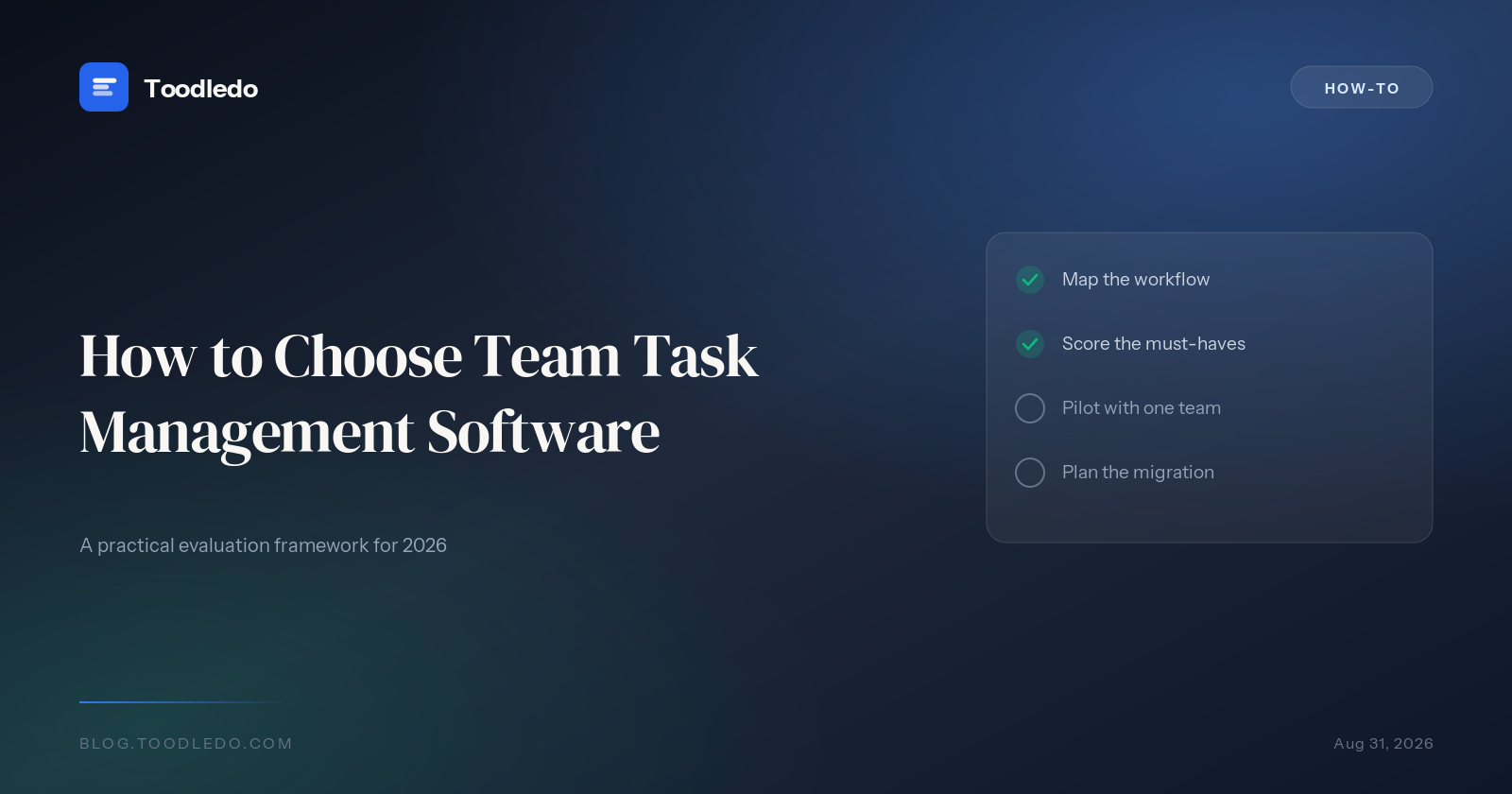
How to Choose Team Task Management Software in 2026
How to Choose Team Task Management Software in 2026
Choosing task management software for a team is a different decision than choosing one for yourself. When you pick a personal tool, the only question is whether it fits your workflow. When you pick a team tool, you are making a decision that affects five, fifteen, or fifty people â each with different workflows, different comfort levels with technology, and different definitions of what "organized" means.
Most teams that abandon their task management tool do so within the first 90 days. The tool either did too little (and people kept side-tracking in spreadsheets and sticky notes) or did too much (and people stopped logging in because it felt like a second job). This guide walks through the decision systematically so you land on a tool your team actually keeps using.
Step 1: Define What Your Team Actually Needs to Track
Before comparing tools, write down what your team tracks right now â even if the current system is a mess of Slack messages, email threads, and someone's personal notebook. Most teams need to track some combination of: who owns each task, when it is due, which project or client it belongs to, its current status, and how it relates to other tasks.
The metadata audit
Look at your team's existing tracking â spreadsheets, whiteboards, Slack pins, whatever you use now. Write down every column, label, and category. These are the fields your task tool needs to support natively. If your spreadsheet has columns for "Client," "Sprint," "Billable Hours," and "Approval Status," those are four custom fields your tool must handle. A tool that cannot filter and sort by these fields will not replace the spreadsheet â it will just add another system on top of it.
Common team tracking needs by type: client-services teams need per-client views and time-based deliverable tracking. Product teams need sprint-based grouping and dependency mapping. Operations teams need recurring task automation and compliance checklists. Mixed teams â startups, small businesses â need flexibility across all of these without requiring an administrator to configure everything.
Step 2: Separate "Must Have" From "Nice to Have"
Every task tool has a feature list. The question is which features your team will actually use in the first month versus which ones sound good in a demo but never get adopted. Features that matter for teams fall into three categories.
Non-negotiable for any team: Task assignment (who owns it), due dates, some form of project/folder grouping, mobile access, and search. If a tool is missing any of these, eliminate it immediately.
Important for most teams: Custom fields or tags for metadata, saved views or filters so each person sees their own workload, subtasks for breaking down complex work, recurring tasks for operational cadences, and at least basic integrations (calendar sync and email-to-task at minimum).
Important for specific teams: Time tracking (client-services), Gantt/timeline views (project-heavy teams), automation rules (operations), API access (teams with developers), guest access (teams working with external clients or contractors).
Step 3: Test With Your Actual Work
Do not evaluate task management tools with sample data. Take a real project your team is currently working on â one with real tasks, real deadlines, real assignees, and real complexity â and set it up in each tool you are considering. This reveals problems that feature comparison charts never show.
Specifically, test these workflows: creating a task and assigning it takes fewer than three clicks. Finding "my tasks due this week" takes fewer than two clicks or one search. Adding a subtask to an existing task is intuitive. Marking a task complete and seeing the updated project view is immediate. Moving a task to a different project or changing its assignee is drag-and-drop simple.
Then test the mobile experience with the same workflows. If creating a task on mobile takes twice as long as on desktop, your team will stop capturing tasks on the go â which means they will stop capturing tasks when they most need to.
Step 4: Evaluate the Team Experience, Not Just the Admin Experience
Most tool evaluations are done by one person â a manager, a team lead, or an operations person â who sets everything up and then rolls it out. But the person who sets up the tool is not the person whose adoption matters most. The individual contributors who need to log in, update their tasks, and check their workload every day are the ones who determine whether the tool sticks.
Also evaluate what the daily experience looks like. Some tools require you to navigate through multiple project views to see your full workload. Others give you a personal dashboard that pulls your tasks from every project automatically. For teams, the personal dashboard approach wins â each person needs to answer "what should I be working on right now?" in under 10 seconds.
Step 5: Check the Integration Stack
A task management tool that does not connect to your team's other tools creates a parallel universe of information. At minimum, your task tool should integrate with your calendar (so deadlined tasks show up on schedules), your communication tool (so Slack messages or emails can become tasks), and your file storage (so task-related documents are linked, not lost).
Beyond the basics, the integration question is specific to your stack. If your team lives in Google Workspace, the tool needs Google Calendar and Gmail integration. If you use Microsoft 365, it needs Outlook and Teams connections. If you have developers, API access and Zapier/Make support matter for custom automation.
| Tool | Calendar Sync | Email-to-Task | Zapier | REST API | Slack |
|---|---|---|---|---|---|
| Toodledo | Yes | Yes | Yes | Full API | Via Zapier |
| Todoist | Yes | Yes | Yes | Full API | Native |
| Asana | Yes | Yes | Yes | Full API | Native |
| ClickUp | Yes | Yes | Yes | Full API | Native |
| Things 3 | No | Yes | No | URL schemes | No |
| Microsoft To Do | Via Outlook | Via Outlook | Yes | Graph API | No |
Step 6: Price It Per Person, Per Year
Task management pricing ranges from free to $30+ per person per month. The right budget depends on team size and how central the tool is to daily operations. For a team of 10, the difference between a $5/person/month tool and a $25/person/month tool is $2,400 per year â meaningful for small businesses, less so for enterprises.
Calculate the true cost: price per seat multiplied by team size multiplied by 12 months. Include any add-on costs for features behind higher tiers (custom fields, automation, reporting). Factor in the cost of the tools it replaces â if it eliminates a separate spreadsheet tracker, a project board subscription, or manual status-update meetings, those are savings.
Free tiers worth evaluating: Toodledo offers a generous free tier with core task management features including subtasks, notes, and basic sharing. Todoist's free plan supports up to 5 active projects. Asana's free tier works for teams up to 10 on basic projects. ClickUp's free tier is feature-rich but can feel overwhelming.
Best value for small teams (under 20 people): Toodledo and Todoist offer the strongest feature-to-price ratio, with custom fields, saved searches, and collaboration features at lower price points than enterprise tools. You get 80% of the functionality at 20% of the cost.
Step 7: Plan the Rollout
How you introduce a task tool matters as much as which tool you choose. The most common failure mode is "announce and abandon" â the team lead sends a Slack message saying "we're using Tool X now," a few people try it for a week, and by month two everyone is back to their old habits.
A rollout that sticks has three phases. In week one, migrate one active project into the new tool and have the team work from it exclusively. Do not run two systems in parallel â that doubles the work and guarantees neither system stays current. In weeks two through four, add remaining projects one at a time. By month two, the old system should be read-only archive.
The rollout checklist
Before day one: set up the project structure (folders, tags, custom fields). Create saved searches for each team member's daily view. Write a one-page "how we use this" guide with screenshots for the three most common actions: create a task, find my tasks, complete a task. Designate one person as the tool champion who answers questions for the first 30 days.
Quick Decision Framework
If you have read this far and want a shortcut, here is how most teams should decide.
Team of 2-10, mixed roles, budget-conscious: Start with Toodledo. Custom fields, saved searches, shared folders, subtask hierarchies, recurring tasks, and API access â all the team features covered in this guide â without enterprise pricing. If you outgrow it (unlikely for teams under 20), you will know exactly what additional features you need because Toodledo will have taught you how your team actually uses task management.
Team of 2-10, all technical, building software: Consider Linear or Todoist depending on whether you want an opinionated dev workflow tool or a flexible general-purpose tool.
Team of 10-50 with cross-department dependencies: Evaluate Asana or Monday.com for the project management layer, but test whether the added complexity is worth it â many teams this size do better with a simpler tool and clear conventions.
Enterprise (50+): You probably need Asana, Monday.com, or Jira depending on whether you are project-centric, operations-centric, or engineering-centric. Budget for a 3-month rollout with dedicated training.
Ready to test with your team? Try Toodledo free â set up shared folders, custom fields, and saved searches in under 10 minutes. No credit card required.
Last updated: August 2026